SpawnHero 2: Workflow Setup
Paper Prototype
- Create a paper prototype for your game level. The game grid is 23 x 16 tiles. Each block is 40px x 40px, making the screen size 920 x 640. Download & Print copies of this grid for prototyping.
- Here is a quick reference of the different elements that can be used in your level design. See the SpawnHero 2 Docs for more descriptions of how each element affects game play.

- If you know how to use the eyedropper tool, LivePaint, and drag to copy & paste in Illustrator, you can quickly mock up a level in Illustrator. Download the Illustrator Template to create a prototype in Adobe Illustrator.
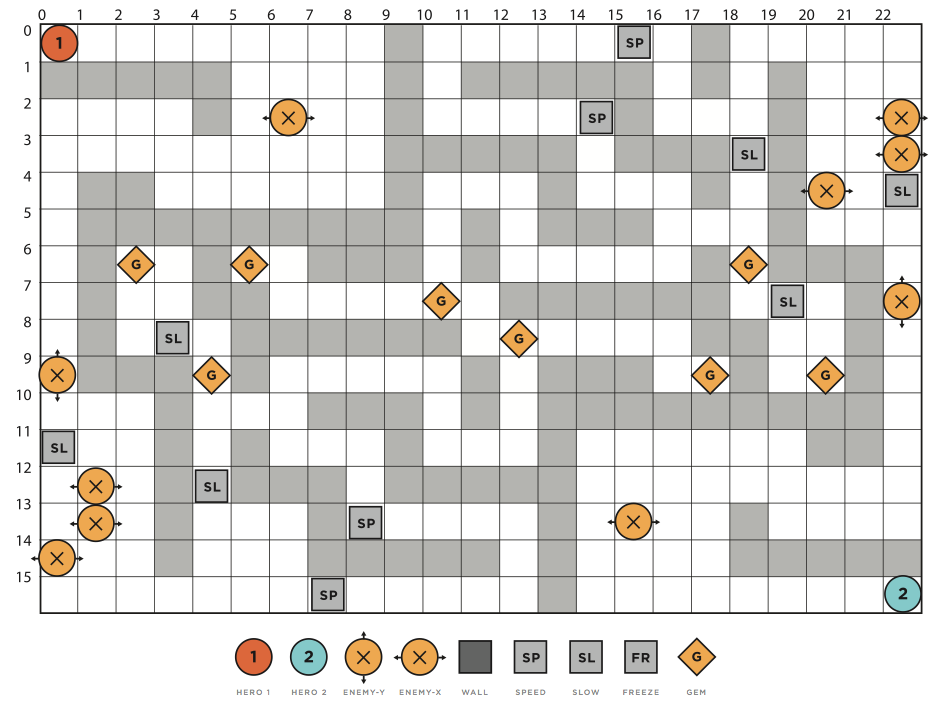
- Here is a demo prototype level mocked up in Illustrator:
Environment Setup
- Download the Project Starter Files.
- Double-click the zipped file to unzip it.
- Move the unzipped folder to your Desktop.
- (Mac) Drag your project folder onto the SublimeText icon in the dock.
(PC) Open SublimeText and open the project from the Menu.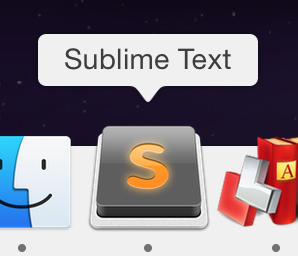
- Your entire folder should open with a sidebar that shows all the project files. If you don’t see a sidebar with files, go to View > Sidebar > Show Sidebar.

- SpawnHero2 Key Files:
- /SpawnHero2 This is your main project directory.
- /assets This directory holds all the graphics and sound effects.
- /flixel This directory holds all the game engine files.
- game.js This is the file where create your game level.
- index.html This is the file your game loads into.
- /SpawnHero2 This is your main project directory.
- Start a Server:
The files require a local server in order to run the game.
- Search for the Terminal App with finder (the magnifying glass in the upper right corner of the computer). Open the App.
- Drag your Spawn-Hero-2 project folder onto the open Terminal window. Then hit Enter. This will navigate directly to the folder containing your game files.
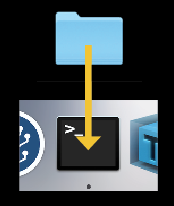
- Type the following command into the Terminal window: python -m SimpleHTTPServer
- Hit Enter. If you did it correctly, after a few seconds, you should see something similar to this:
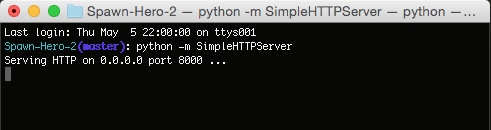
- To View the Game in Chrome:
- Open a new Google Chrome browser.
- Type the following url in the address bar: http://localhost:8000
- You will see the game titlescreen.
Programming Workflow
- Test Code Changes Often:
- Save the code you typed.
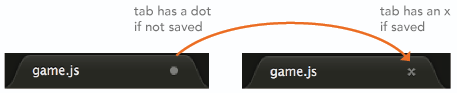
- Switch to your Google Chrome browser that contains your game.
- Refresh the page by hitting Command-R
- Save the code you typed.
- Debugging:
- In Chrome, right-click (Mac: Control-Click) the game page and choose Inspect from the dropdown.
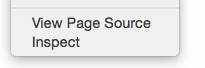
- Click Console in the nav. If there any errors in your code if will show along with hints to the line number of the error.
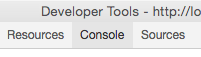
- In Chrome, right-click (Mac: Control-Click) the game page and choose Inspect from the dropdown.
Build Your Game Level
- All game level code is added to the game.js file. Translate your paper prototype to code. Here's a snaphot of some of the code used for the demo prototype:
- Refer to the SpawnHero 2 Docs for the different function calls you can use in the level.
- Once your game level completed, play test your game.
Publish Your Game
When you are done building your game level, Upload & Publish your game.
Game Programming Difficulty
Some technical setup. Does not require extensive knowledge of Javascript. Game level programming can be completed in 10min ~ 1hr.